How to turn a PDF bank statement into an Excel spreadsheet you can trust
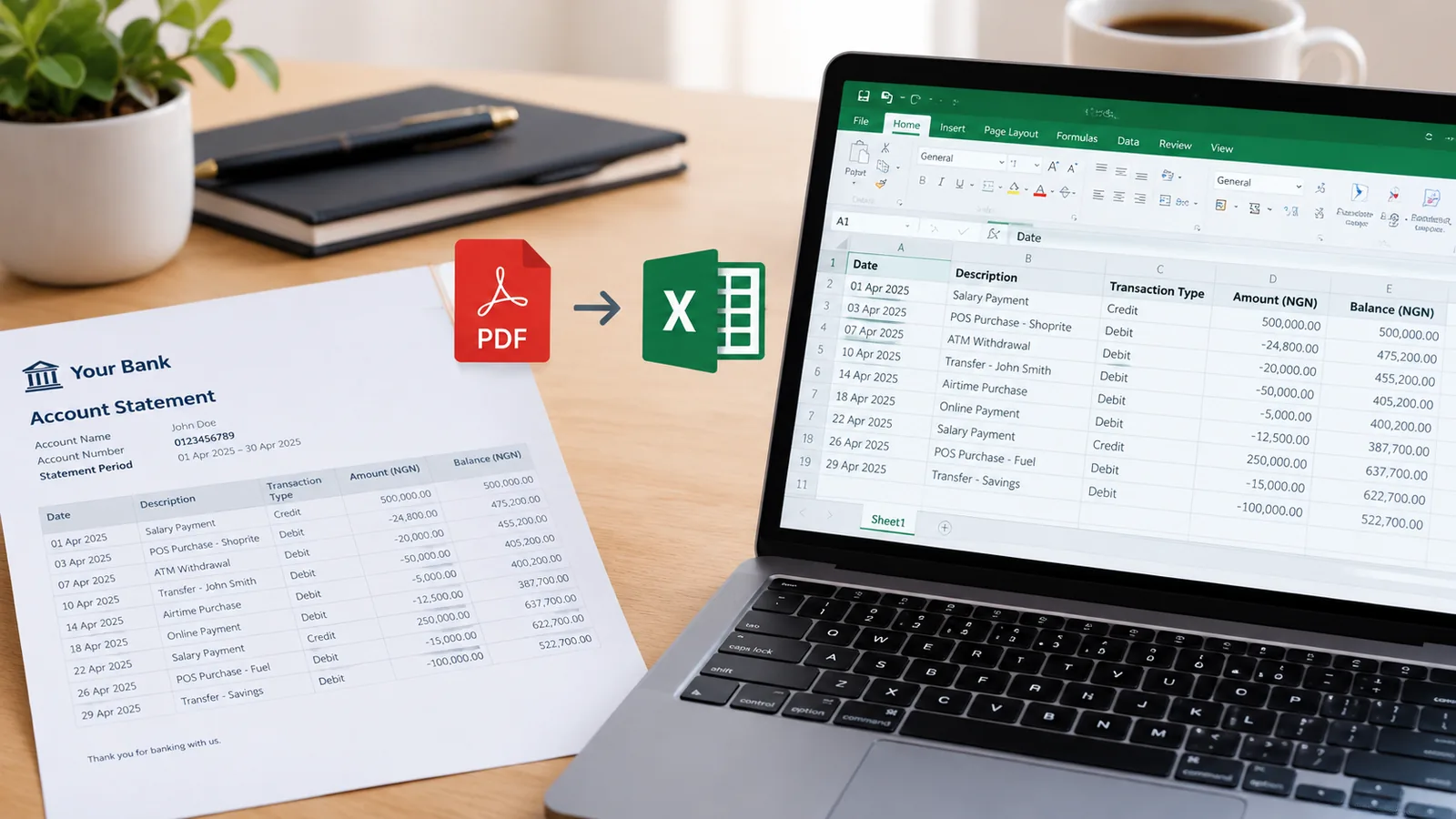
Copying a bank statement out of a PDF by hand is slow and easy to get wrong. A faster way to get it into Excel, how to check every figure came across correctly, and what to do with it next.

Edema Ukabi, ToolkitDeck Team
· 5 min read
Key points
- Copying and pasting from a PDF usually breaks columns, dates and numbers.
- A converter that reads the table gives you real numbers and dates you can sort and total.
- The running balance is a free check: every row should equal the balance before it, plus money in, minus money out.
- Check your last balance against the closing balance printed on the statement.
- Scans and photos can be read too, but their figures need checking even more carefully.
- Once it is a spreadsheet, you can sort spending into categories and see where the money went.
Banks are happy to send statements as PDFs. Your accountant, your loan officer and your own budget want them in a spreadsheet. Getting from one to the other by hand takes an afternoon, and one mistyped figure can throw out everything after it.
This guide covers why copy and paste goes wrong, how to convert a statement properly, how to check that every figure is right, and what to do with the spreadsheet once you have it.
Why does copying a bank statement into Excel go wrong?
A PDF is designed to look right on paper, not to keep data in neat columns. When you select a table in a PDF and paste it into Excel, you usually get:
Columns run together, so the date, description and amount land in one cell.
Numbers pasted as text, so a column of figures won't add up.
Dates in the wrong format, such as 03/04 read as 4 March instead of 3 April, or as text Excel doesn't recognise.
Descriptions that wrap onto two lines, turning one transaction into two rows.
Page headers and footers mixed in with the transactions.
You can fix each of these by hand, but on a statement with hundreds of lines, you will spend longer fixing than you would have spent typing.
What is the best way to convert a PDF statement to Excel?
Use a converter that reads the statement as a table: one that finds the columns, keeps each transaction on one row, and turns amounts into numbers and dates into dates. The result is a spreadsheet you can sort, filter and total straight away.
Look for a converter that:
Works with your bank's layout. Statements differ from bank to bank, and some change layout from month to month.
Opens password-protected statements, which many banks send by email.
Keeps money in and money out as separate numeric columns, or as one signed amount.
Checks the figures against the statement's own balance, so mistakes are flagged rather than hidden.
Deletes your file once it has been read. A bank statement holds sensitive information.
How do you check the conversion is right?
Never trust a conversion just because it looks tidy. The most common errors are the quiet ones: a missing row, a minus sign that went missing, a number misread. Fortunately, a bank statement gives you a free way to catch them.
The running balance check
Each row's balance should equal:
the balance on the row before + money in − money out
If one row doesn't add up, something went wrong right there. If every row adds up, no row has been dropped or misread.
The closing balance check
Compare the last balance in your spreadsheet with the closing balance printed on the statement. Then check that:
opening balance + total money in − total money out = closing balance
If both checks pass, you can rely on the figures.
Can you convert a scanned or photographed statement?
Yes, but take a good picture, because the text has to be read from the image first:
Lay the page flat in good, even light.
Fill the frame with the page.
Hold the phone straight above it, not at an angle.
Make sure the whole table is in the picture, including the balance column.
Figures read from a photo are more likely to be wrong than figures read from a PDF, which is exactly why the balance checks matter. Handwritten notes aren't read reliably.
What can you do with your statement in Excel?
Once your statement is a spreadsheet, it becomes useful:
Sort spending into categories: rent, salaries, stock, transport, data and airtime, subscriptions.
Total each category and see where the money actually went this month.
Spot recurring payments you forgot about.
Hand it to your accountant in the format they need for your books and tax return.
Support a loan, visa or tenancy application with figures that are easy to review.
Compare months to see whether spending is rising.
A simple layout for your categorised statement
Date | Description | Money in | Money out | Balance | Category |
|---|---|---|---|---|---|
01/03 | Opening balance | 250,000 | |||
02/03 | Transfer from client | 180,000 | 430,000 | Sales | |
04/03 | Shop rent | 120,000 | 310,000 | Rent | |
05/03 | Mobile data | 8,500 | 301,500 | Utilities |
Common questions
Is it safe to upload a bank statement to a converter?
Only to one you trust. Check where the file is processed, whether it is sent to other companies, and how long it is kept. The safest services read the file and delete it straight away, keeping only the table you download.
My statement is password-protected. Can it still be converted?
Usually, yes. You type the statement's password when you upload it, the same one you use to open it on your computer.
Why are some numbers negative?
Some banks and converters show money out as negative amounts in one column, rather than in a separate "money out" column. Both are correct. Pick one style and stick with it for all your months.
Can I convert several months at once?
You can convert them one after another and paste them into one workbook, or keep a sheet per month. Check each month's opening balance against the previous month's closing balance.
Does this work for other documents?
Yes. The same approach works for invoices, receipts, price lists and payslips: any document with a table. Where the document prints a total, check the converted lines add up to it.
Convert a statement now
ToolkitDeck's PDF to Excel converter reads statements from any bank, including password-protected ones, checks every row against the running balance and highlights anything that doesn't add up. Your file is read on our own server and deleted as soon as it has been read.
Want to see where your money goes each month? Send the result straight into the budget planner to sort it into categories. And if you invoice clients, read what to put on an invoice so you get paid on time.